Apple HomeView First Impressions: What Can It Actually Do?
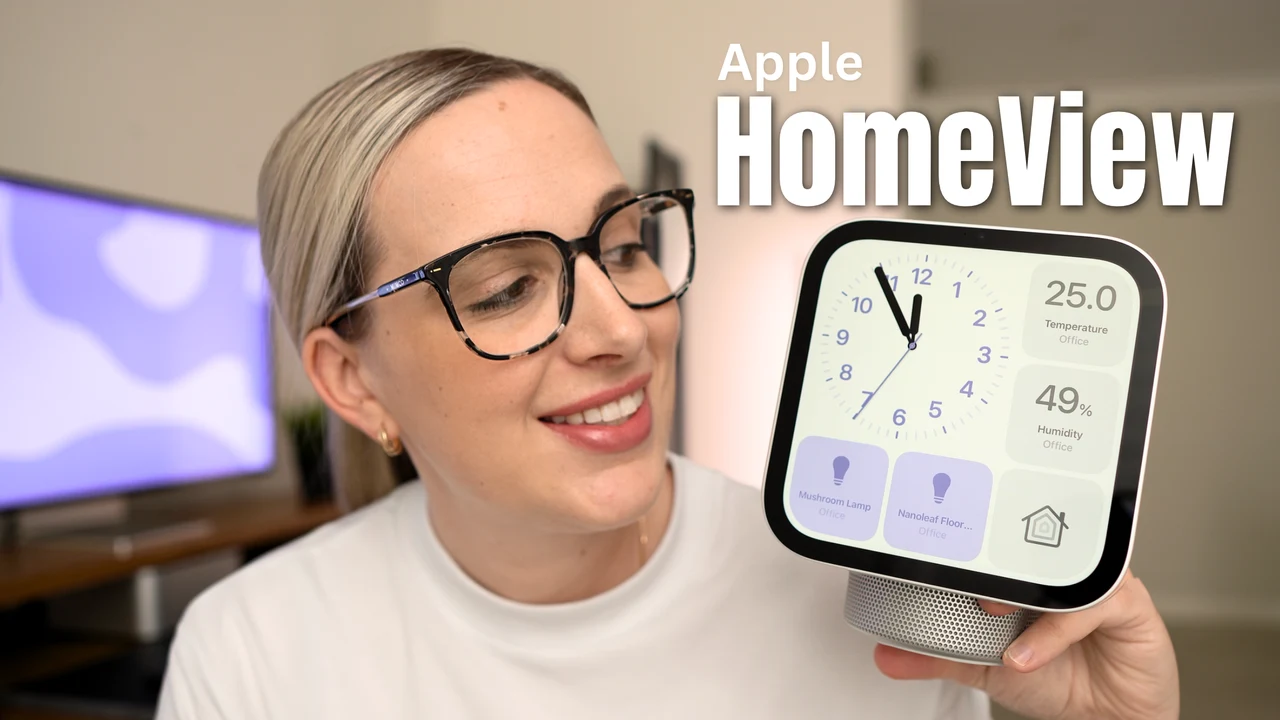
The HomeView is Apple's first smart home display.
It's small and really cute in person, and it comes in four colours: silver, starlight, rose pink and space grey. Mine is the silver one. In the box you get the HomeView itself, a 30 watt USB-C power adapter and a braided USB-C cable.
The 7 inch screen has 500 nits of brightness, and you can tilt it forwards and backwards to get the angle right, although it doesn't swivel side to side. On the front there's a 12 megapixel Center Stage camera, and there are microphones on the front, back and sides. The speaker sits in the base along with the USB-C port.
Inside, it runs on an A18 chip and has Thread built in for your smart home accessories. There's also a temperature and humidity sensor, plus sound detection that can pick up smoke and CO alarms.
Here's my first look at what it can do, from setup to the features I think you'll actually use, like handing music and YouTube over from your iPhone and following recipes in the kitchen.
Setting It Up
Setup is really simple and only takes a few minutes.
- Plug the HomeView in.
- Bring your iPhone close to the HomeView and a setup prompt will appear on your phone.
- Use your iPhone to scan the image that shows on the HomeView screen.
- Follow the steps on screen, reading through each one as you go.
- Set up facial recognition when you're asked.
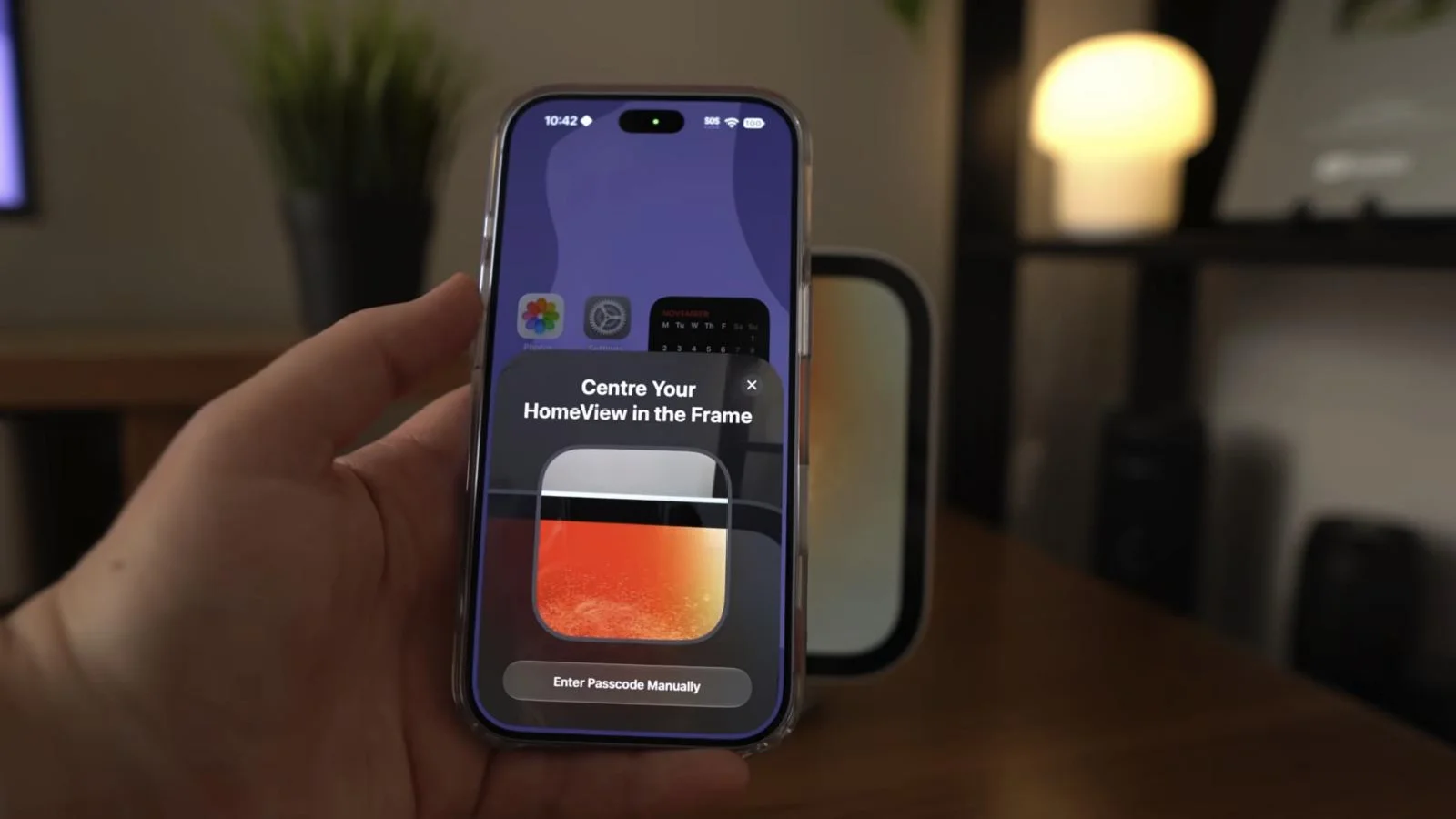
That last step is an important one. Facial recognition is how the HomeView knows it's you when you walk up to it, and it will only show your personal content if it sees your face or hears your voice. So if one of my kids walks up to use it, they can't see my personal things like text messages.
Getting Around and the Apps
If you've used an iPhone or iPad before, the HomeView will feel really familiar. It's a small square screen, so everything is big and easy to tap.
All the apps on the HomeView are Apple apps. There's no App Store or App Library, so you can't download apps like you would on your iPad. You get the basics:
- Music and Podcasts
- FaceTime and Messages
- Calendar and Reminders
- Weather and Timers
- Safari
Apps from your iPhone
Here's the interesting bit. I didn't install it, but YouTube Music showed up on my HomeView because it's on my iPhone. Some audio and video apps on your iPhone can appear on the HomeView automatically. Basically, if an app works with CarPlay in your car, there's a good chance it'll show up here.
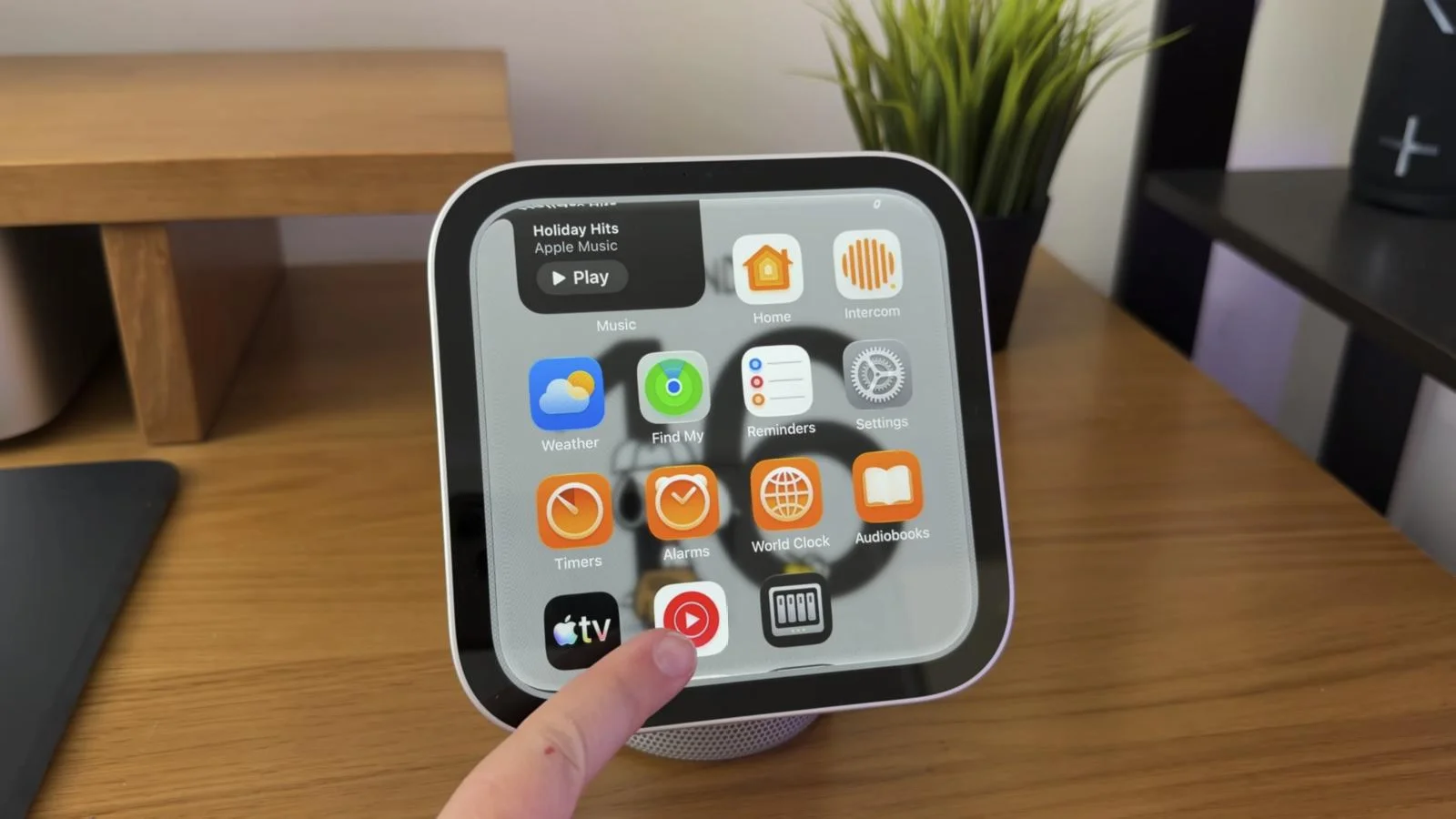
It only shows your apps when it recognises your face or your phone is nearby, so your partner or kids will see their own apps, not yours.
Safari
Safari on the HomeView is like a mini web browser. I wouldn't use it for long browsing sessions, but for quickly looking something up it does the job.
Handing Off Music and YouTube from Your iPhone
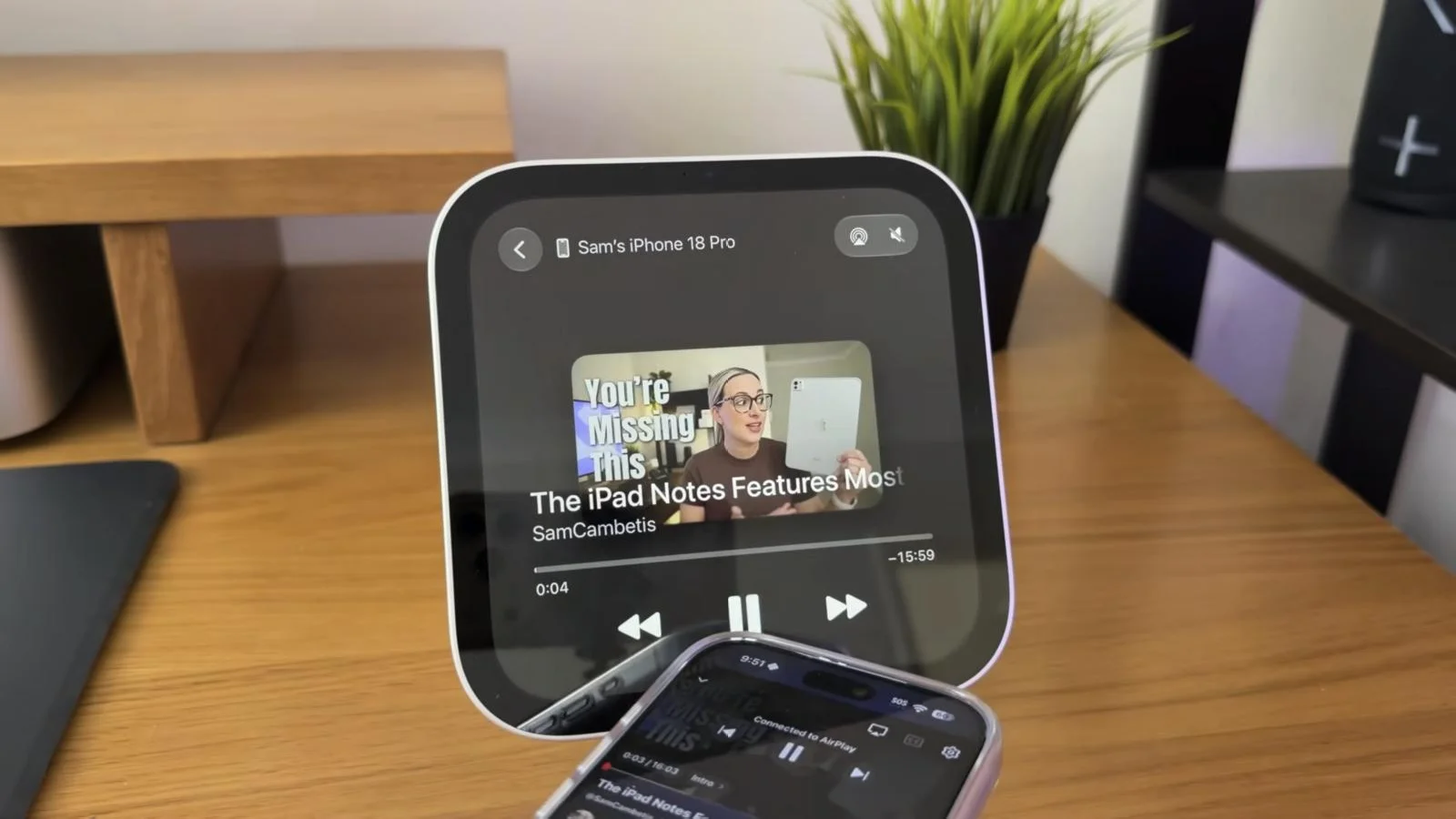
If you've got music playing on your iPhone, you can hand it straight over to the HomeView.
- Start playing a song on your iPhone.
- Hold your iPhone up close to the HomeView.
- The music picks up on the HomeView right where you left off.
I do this when I walk into the office with a song playing, so I can keep listening while I work.
It works with YouTube videos too. If I've got a video playing on my phone, I just hold it up and there it is on the HomeView. So even though there's no YouTube app, you can still watch YouTube this way. That's really handy if you're following along with a cooking video or a how to and want it on a bigger screen.
Recipes and Timers in the Kitchen
This is the feature I think a lot of people will actually use.
- Open a recipe on your iPhone.
- Hold your iPhone up to the HomeView.
- The HomeView pulls out the ingredients and turns the recipe into step by step instructions.
- When you're ready to move on, just say "Siri, next step."
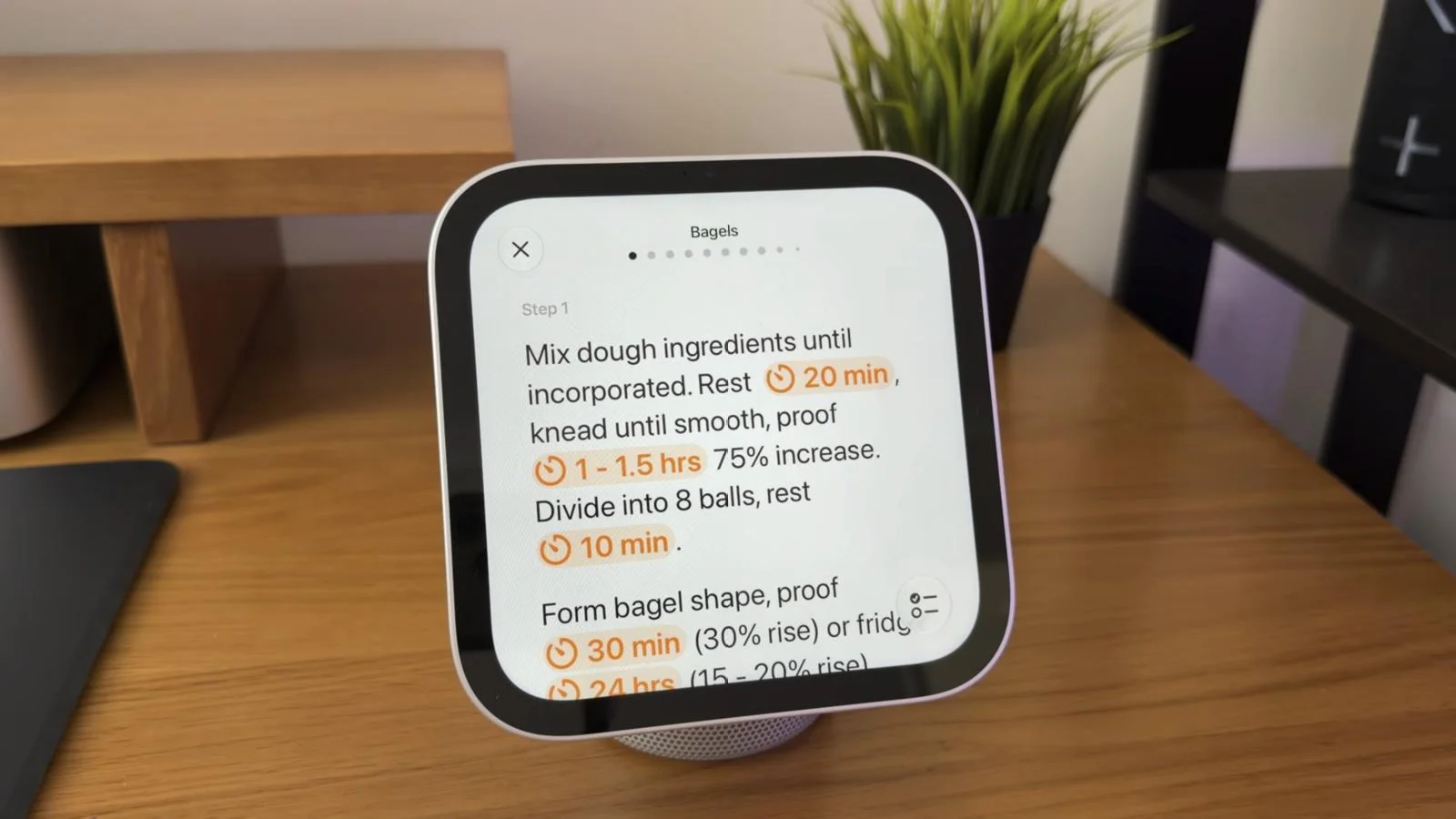
No more scrolling past someone's life story to find the method, and no more unlocking your phone with messy hands.
You can also set more than one timer, which is great when you've got a few things on the go. Even if you jump into another app, your timers stay on the screen so you don't lose track.
Family Profiles and Guest Mode
If someone else in your home walks up to the HomeView, it automatically switches to their profile.
If someone who isn't set up on it walks up, like a friend who's visiting, they get the shared guest screen. Guests can still:
- Control the smart home
- Check the weather
- Set timers
- Play music
Your messages and calendar stay hidden. You can also choose what guests can use. For example, Safari can be turned off or set to block adult websites, which is great if you've got kids.
Living With It
After spending a bit more time with the HomeView, I think it's a great device to have around the home.
Siri with Apple Intelligence
Siri is a lot smarter now with Apple Intelligence. She can pull info from things like my calendar, emails and texts. When I'm getting the kids ready for school, I just ask what's on today, and she reads it out while I see it on the screen too. If I've forgotten something someone texted me, I can just ask. The kids have also started asking her every single day how long until Christmas.
Smart home
I'm really loving it for the smart home. I've only just started moving over from Google, so I've only got a few lights set up so far, but having one spot where the whole family can control them is really great. Once I've got some cameras that work with Apple Home, I'll be able to see those here too.
Faces
I love flicking between the different faces. We've got one showing our family photos, which the kids love to watch, and I enjoy seeing them on my desk too.
Sound and FaceTime
The sound straight out of the HomeView is really nice, but you can also pair it with a HomePod mini, and together they sound really good. If you've got HomePods around the house, you can have music playing through the whole home.
FaceTime is great here too, especially when the whole family wants to jump in and chat with the grandparents.
There's still heaps I haven't tried yet, but so far I think it's great.
Watch the Full Video
To see the HomeView in action, from unboxing to recipes and handing off music, watch the full video below.
HomeView provided by Apple.