The iPad Notes Features Most People Never Use

There's a lot more in the Notes app than most people use. Some of it is brand new, and some of it has been around for years.
Here are five tips that make Notes a lot more useful, from making long notes easier to read to sharing a note with your family and friends. I'm showing them on my iPad, but most of them work on iPhone too.
Tip 1: Keep Long Notes Organised
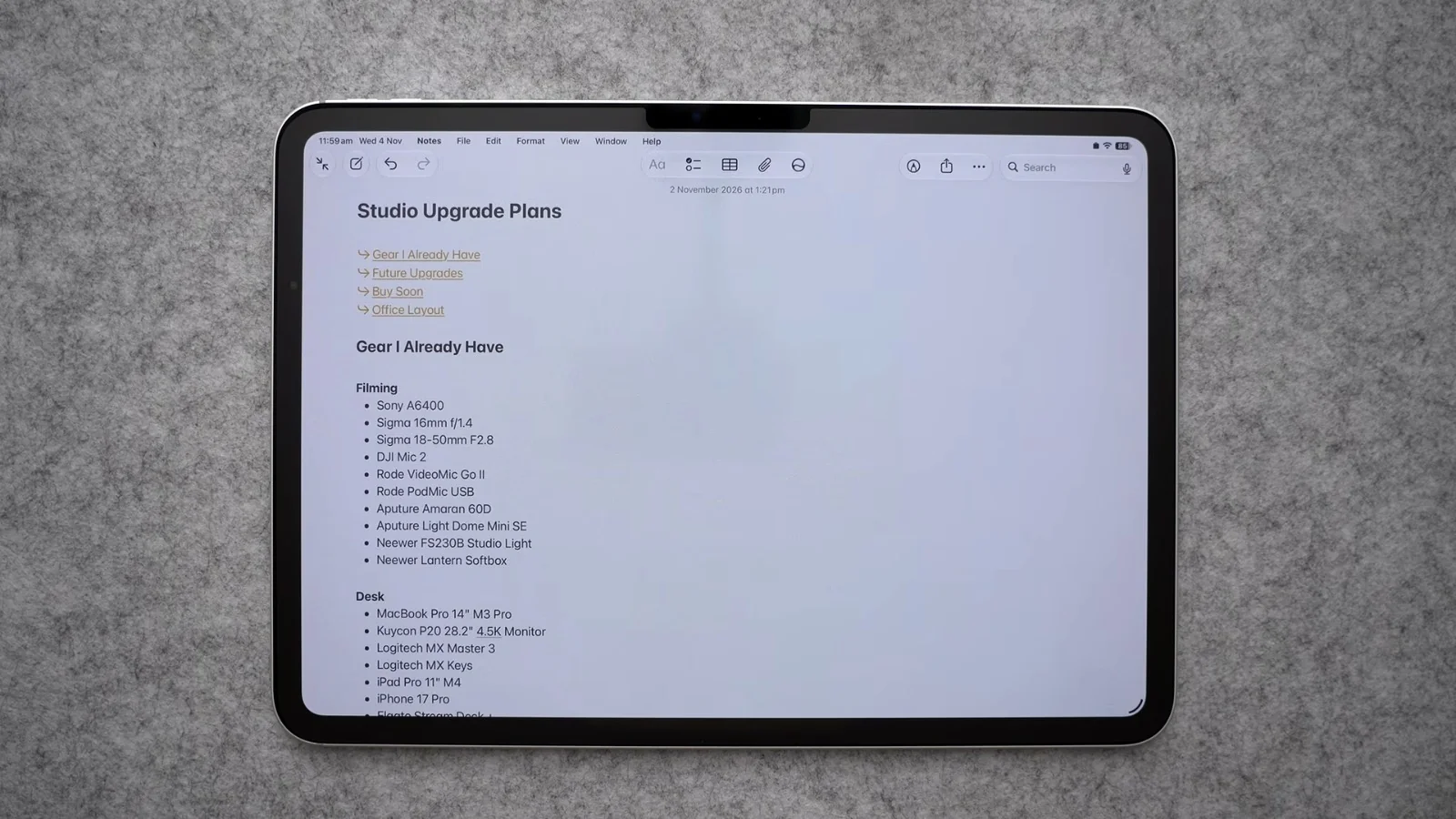
This one is for the notes that keep growing, like a recipe collection or a holiday plan. For me, it's a note of upgrades I want to do in my studio. Here are a few ways to make long notes easier to manage.
Give everything a heading
The first thing I'd recommend is making sure every section has a heading.
- Select the text.
- Tap the Aa button to open the formatting options.
- Choose Title, Heading or Subheading. Swipe across and you'll also find Body and Monostyled.
The top of the note should be your Title. You can make it bold as well.
Collapse sections
Any title, heading or subheading gets a little arrow next to it. Tap the arrow and everything underneath collapses. That means you can just look at the headings instead of scrolling through a big long page. Tap the arrow again to open it back up.
Add divider lines
This is a new feature, and it's really good for breaking a note into sections.
- Tap in a blank space where you want the divider, then tap again to bring up the menu.
- Tap the arrow on the side to see more options.
- Choose Insert Divider Line.
Make a table of contents
For really long notes, you can add links that jump to each section, so you get your own little table of contents at the top.
- Tap in a blank space at the top of your note to bring up the menu.
- Tap the arrow and choose Add Link.
- Under Link to Section, tap None and choose the heading you want to jump to.
- Tap the tick to add the link.
Do this for each of your main headings. Now when I tap Office Layout, it jumps straight down to that part of the note.
Link to another note
You can also link to other notes. I want to buy a new Mac Studio, and I already have a separate note about it, so I linked that note into my studio plan.
- Type some text for the link and select it.
- Tap the arrow and choose Add Link.
- Start typing the name of the other note, and tap it when it appears.
- Choose whether to use the note's title or keep your own text.
Tap the link and it takes you straight to that note.
Highlight what matters
If you want something to stand out on the page, select it, tap Aa, then tap the colour option next to the pen. Pick a colour and the text is highlighted. I used purple.
Tip 2: Let Notes Do the Maths
Most people have no idea this is there. Notes can do maths for you right inside the app, and it even works with handwriting.
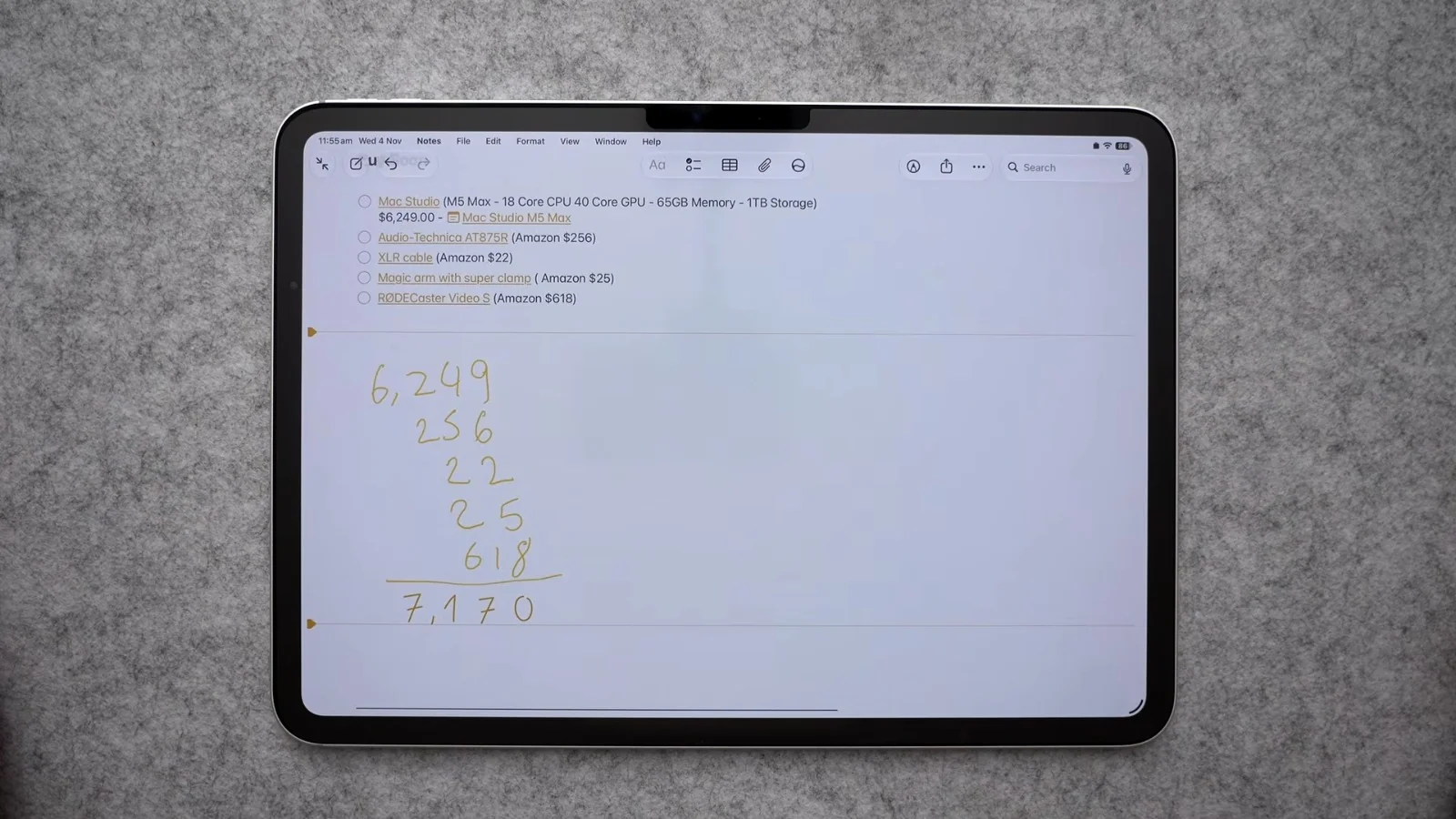
I had a list of things I want to buy soon, and instead of opening another app to add them up, I did it right in the note. There are two ways to do it.
Type it
Just type a sum followed by an equals sign, and Notes gives you the answer. To change how this works, tap the More menu (the three dots) and go to Maths Results. You can choose Insert Results, Suggest Results or Off.
Write it with Apple Pencil
This is the way I like to use it. In a typed note you can't just start writing, so you need a drawing space first.
- Tap where you want it, then tap the arrow in the menu.
- Choose Insert Drawing.
- Write out your numbers with your Apple Pencil (don't mind my handwriting).
- Tap Solve, and the answer appears right there.
Tip 3: Tidy Up Your Handwriting
This one is for anyone who writes in Notes with an Apple Pencil. If your handwriting gets messy when you're writing quickly, your iPad can tidy it up for you, and it still looks like your own writing.
- Tap the pen icon at the top of the screen to open the drawing tools. Here you can pick a pen, its thickness and a colour.
- Tap the More button (the three dots) in the tool palette.
- Turn on Auto Refine Handwriting.
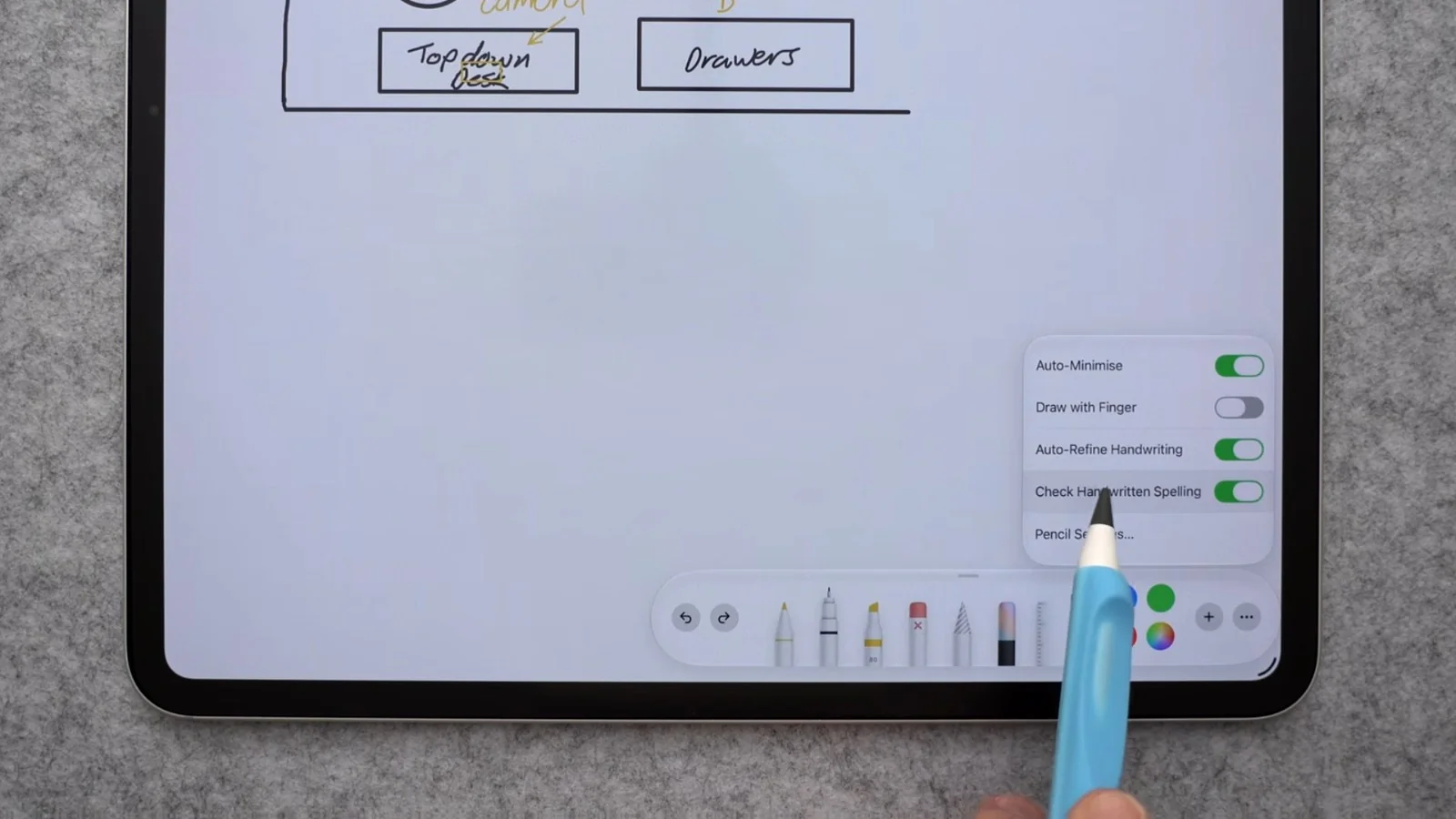
Now when you write, it neatens your writing up a little as you go.
Fix spelling mistakes
It also picks up mistakes. When I spelled planning wrong, it underlined the word. Tap the underlined word and choose the correct spelling, and it puts the missing letter in using your (refined) handwriting.
Move and resize your writing
Tap a word and you can stretch it to make it bigger or smaller, or drag it to wherever you want it.
Scribble to delete
To get rid of something, scribble through it and hold your pencil down at the end. It disappears.
Draw perfect shapes
I've been sketching shapes to plan out my office. Draw a circle or square and hold at the end, and it snaps into a perfect shape. For a straight line, draw it across and hold.
Tip 4: Share a Note and Work on It Together
This is really handy if you're going on holiday with a friend or family member, or planning something together like Christmas lunch. Share a note with them and you'll both see it update straight away.
You can do this with a new note or one you've already made.
- Open the note and tap the Share button at the top.
- Choose Share a Link (not Send a Copy).
- Pick someone from the suggestions. I chose my husband, and it opened a text message with a link to the note.
- Add a message if you like and tap Send.
When they open the link, you can both start working on the note.
See who's working on it
Shared notes show a little icon with two people in your notes list. Inside the note, the people who have access appear at the top. Tap one of them and you can:
- View all participants
- Show all activity, which opens a list down the side showing when people made changes
- Show highlights
Add a checklist
Checklists work really well in a shared note. For our Christmas lunch note, I added what I'm bringing: a roast chicken and a salad. Select the lines, tap the checklist button at the top, and now they have tick boxes. Everyone in the shared note can see when I've got each one sorted.
Tip 5: Find Your Notes Again
This last tip is all about finding your notes again, including the ones you've accidentally deleted.
Search
Tap the magnifying glass at the top to search across the whole Notes app. Type any keyword from the note you want. I was looking for my note about a Samsung SSD, so I typed Samsung, and every note with that word popped up with the word highlighted. You just need to remember one word that was in the note.
Folders
Folders are a good way to keep things organised. I have Notes, Personal and Business, so each part of my life has its own place.
- Tap the new folder icon at the top and give the folder a name.
- To move a note into it, press and hold the note, tap Move, and choose the folder.
Tags
I don't use tags much myself, but I know a lot of people who do. Tap a tag and you'll see every note that has it.
To add a tag, tap the 123 key on the keyboard, then the # key. Choose a tag you already have, or type a new name like #Mac and press return. It turns yellow, so you know it's a tag.
Recently Deleted
If you delete a note and need it back, go to Recently Deleted. Everything you've deleted sits in there for 30 days before it's removed for good. To get a note back, swipe on it, tap Move and put it back into a folder.
If you'd like more tips, I've also written up my first Notes video: Your iPad's Notes App Can Do More Than You Think.
Watch the Full Video
You can see all five tips in action in my full video below.